
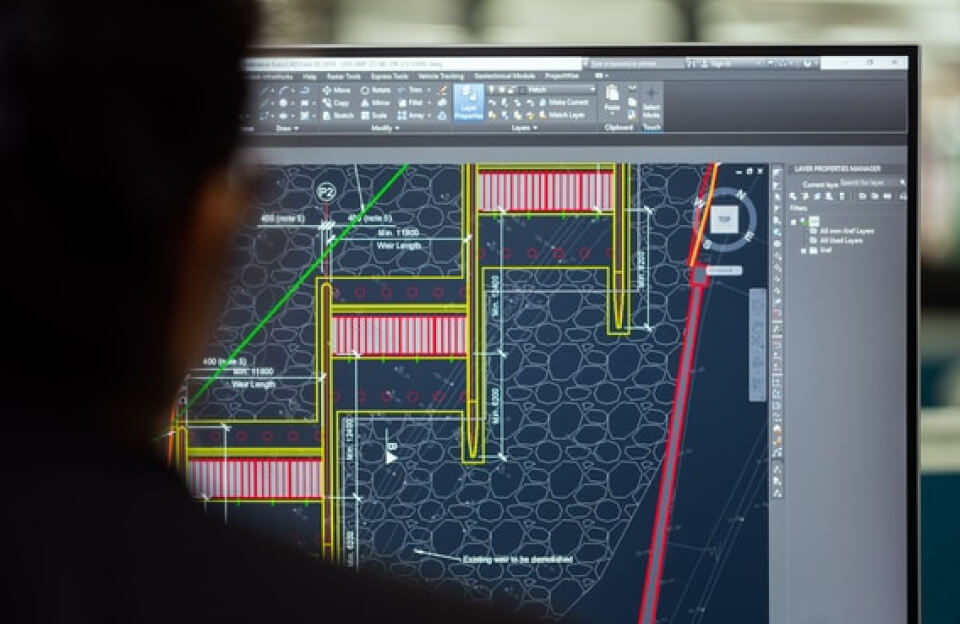
That’s a fantastic title for a CAD (Computer-Aided Design) productivity guide! “Life on CAD: Get to Know the Shortcut” perfectly captures the philosophy that mastering shortcuts is the key to speed, precision, and a smoother workflow.
Here’s a breakdown of why shortcuts are essential and a starter kit of universal commands to transform your “Life on CAD.”
Why Shortcuts = A Better CAD Life
- Speed: Your hand never leaves the keyboard to search through ribbons or toolbars. Commands execute in milliseconds.
- Flow: They minimize disruptive interruptions, keeping you in the “design zone.”
- Precision: They reduce the chance of misclicking and allow for rapid, sequential command input.
- Reduced Strain: Less mouse movement means less risk of repetitive strain injury (RSI).
The Universal Shortcut Starter Kit
While specific keys can vary between AutoCAD, SolidWorks, SketchUp, etc., these concepts and common keys are a great foundation.
1. The Almighty “Modify” Commands (The M-Key Magic)
These are your bread and butter for editing. In many programs, you type the command and then select objects.
- M → Move: The fundamental command for repositioning.
- CO / CP → Copy: Duplicate objects. (
Ctrl+Coften copies to clipboard;COcopies within the drawing space). - RO → Rotate: Spin objects around a base point.
- SC → Scale: Enlarge or shrink objects.
- TR → Trim: Cut lines or geometry to a boundary.
- E → Erase: The fastest way to delete. (Often just hitting the
Deletekey works too).
2. The “Draw” Essentials
- L → Line: The starting point for most geometry.
- C → Circle: Draw a circle by center and radius.
- REC → Rectangle: Draw a rectangle by two corner points.
- A → Arc: Create an arc segment.
3. The Critical “Control” Keys (Standard Across Most Software)
- Ctrl + S → Save: Do this constantly. Your future self will thank you.
- Ctrl + Z → Undo: Step backwards. (Often
Ctrl + Yfor Redo). - Ctrl + C / Ctrl + V → Copy/Paste: To/from the clipboard.
- Ctrl + 1 → Properties Palette: (AutoCAD) Modify object details.
- Ctrl + Tab → Switch between open documents.
4. Navigation & Display Shortcuts
- Mouse Wheel:The most important “shortcut” of all.
- Scroll: Zoom in and out.
- Press & Hold: Pan around the drawing.
- Double-Click: Zoom to extents (see everything).
- Z → Zoom: Opens more zoom options.
- F8 → Ortho Mode: Constrains your cursor to horizontal and vertical movement. Crucial for clean drawings.
How to Build Your Shortcut Habit
- Learn 3 at a Time: Don’t overwhelm yourself. Pick three new ones each week.
- Print a Cheat Sheet: Tape it next to your monitor until muscle memory kicks in.
- Customize Them! Most CAD programs let you create aliases (e.g., changing
COPYto justCif you don’t use circles often). This is the true pinnacle of “Life on CAD.”
Pro-Tip: The ultimate shortcut is the Spacebar or Enter key. It almost always repeats your last command, saving you from having to type or click it again.
Embracing shortcuts turns CAD from a series of clicks into a fluid conversation with your design. Start with these, and soon you’ll be navigating and creating with keyboard-driven speed that feels like second nature. Welcome to the efficient Life on CAD.



thanks